

How to Install & Activate Office 2024
In just a few simple steps.
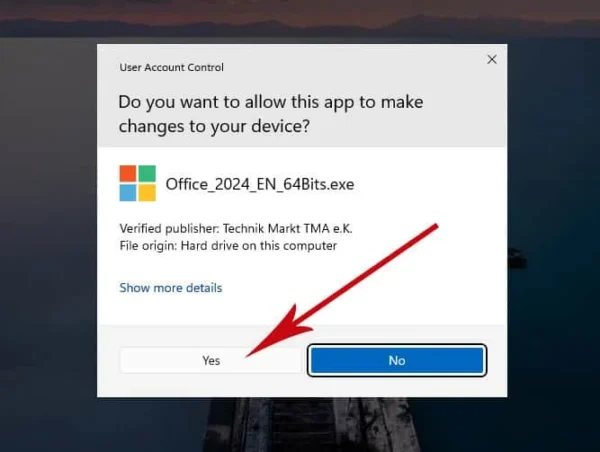

Enter Your Key
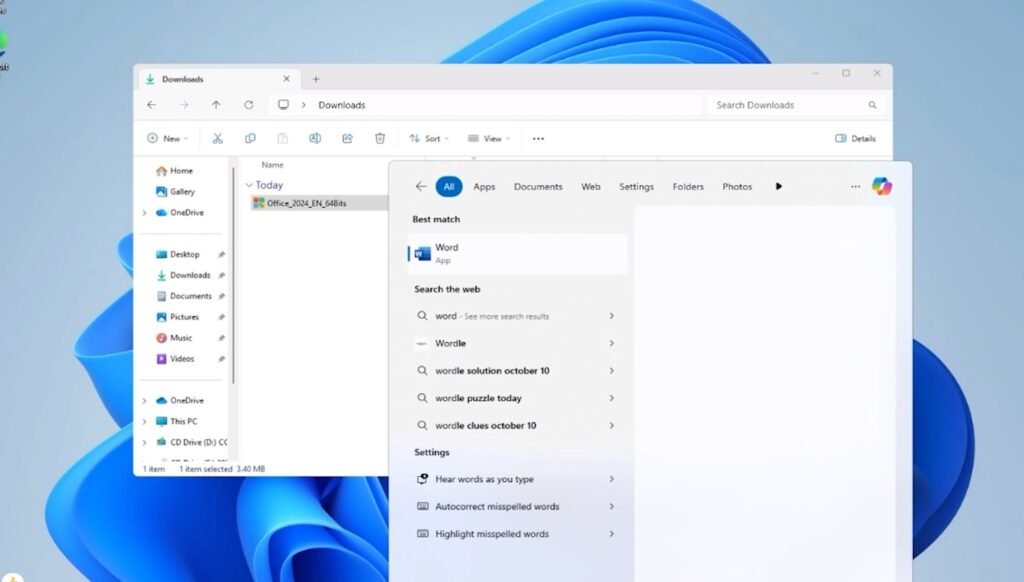
After installation, open Word or Excel, click on Account, and enter your product key.


Activate by Telephone
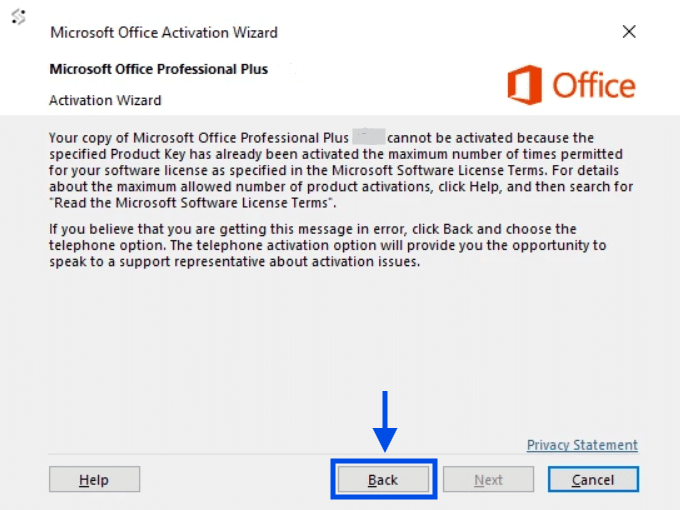
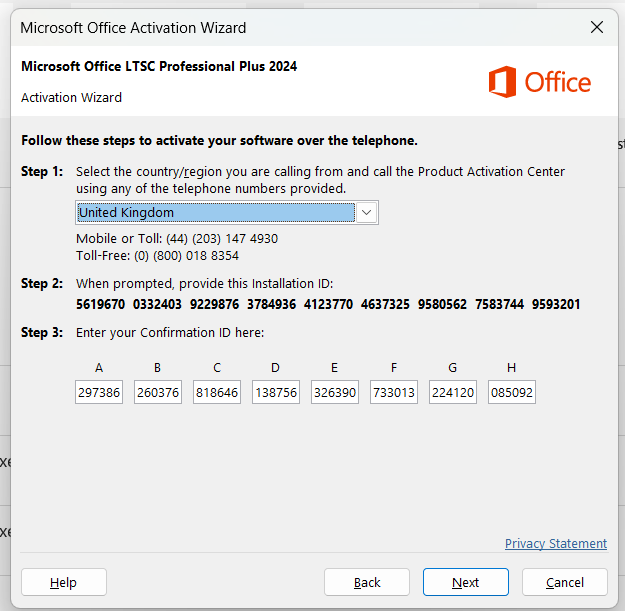
You'll either see activation succeed right away, or a message saying the key has already been used multiple times. If that happens, click Back and select "I want to activate the software by telephone."
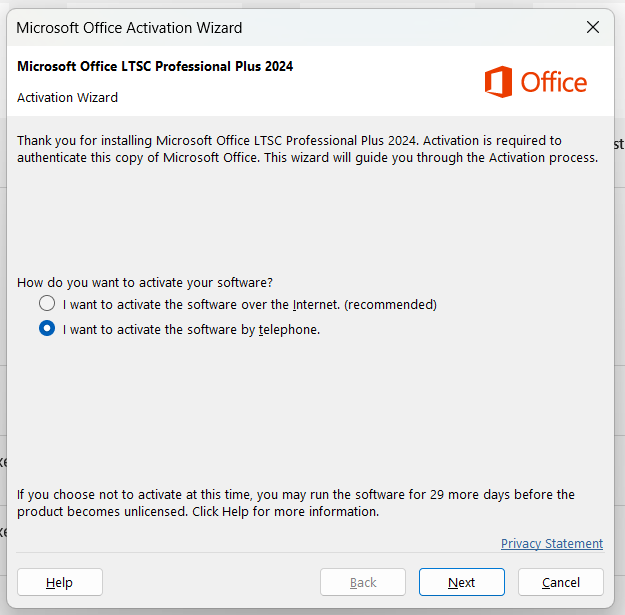
Call Microsoft & Get Your Confirmation ID
Select your country — this gives you the correct Microsoft activation phone number to call for your region. Call that number and follow the automated prompts to receive your Confirmation ID, then enter it to finish activation.
This call is free and goes directly to Microsoft's automated activation line — it usually takes just a couple of minutes.
Use our tool to get your Confirmation ID Instantly without using phone Just enter your Order ID and upload Screenshot of your Installation ID.
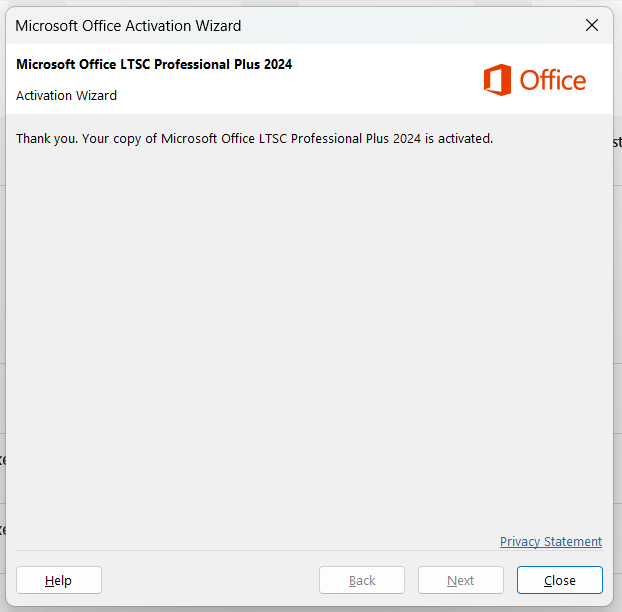
Congratulations!
Your product is now activated and ready to use.
Need a hand?
If you need any help, just contact us — we'll assist you until you're activated successfully.